
How It’s Used
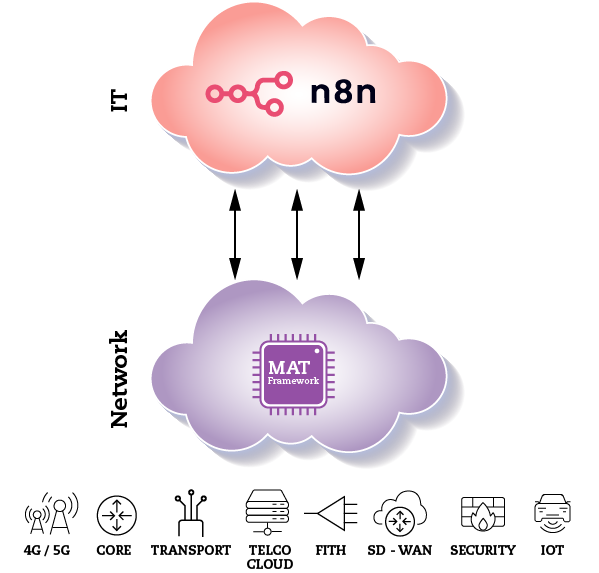
The integration between n8n and MAT Framework is straightforward and production-ready.
A workflow is designed in n8n, typically combining business systems such as CRM, ITSM, Billing platforms, or internal approval processes. When the workflow reaches a step that requires network impact, the MAT Framework node is invoked.
The MAT node triggers a predefined, versioned, and governed automation inside MAT Framework. MAT executes the automation using its native orchestration engine, applying RBAC, CI/CD validation, maintenance window controls, and policy enforcement. Execution results are returned to n8n in a structured format, allowing the workflow to continue.
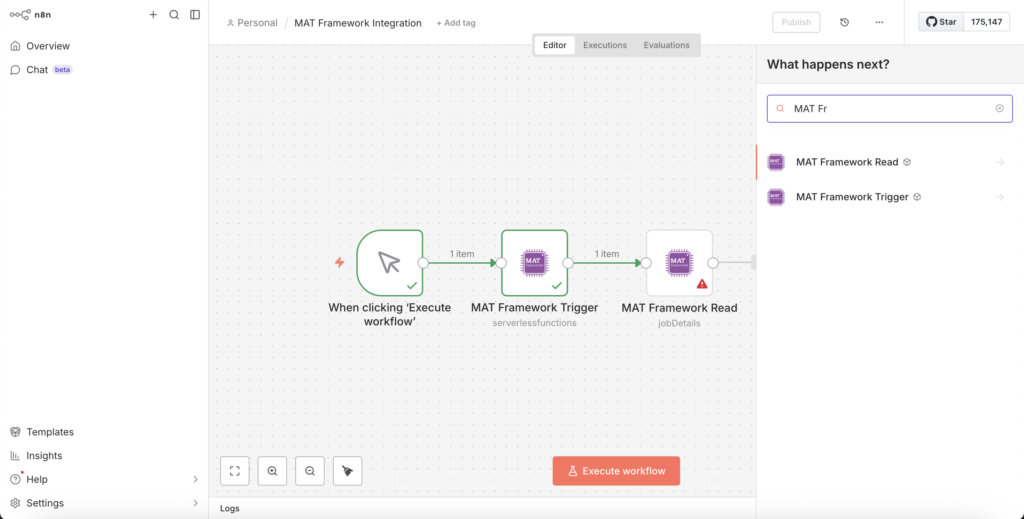
MAT Framework provides two n8n nodes:
- MAT Framework Trigger
- MAT Framework Read
The Trigger node is used to execute Network Automations hosted in MAT Framework, while the Read node retrieves complete execution results. Both nodes can be found directly in the n8n node search panel.
MAT Framework Trigger
The MAT Framework Trigger node is used to execute automations developed in your MAT instance. To configure it, the following parameters are required:
Credential
The credential used to connect to MAT is generated from an API Key.
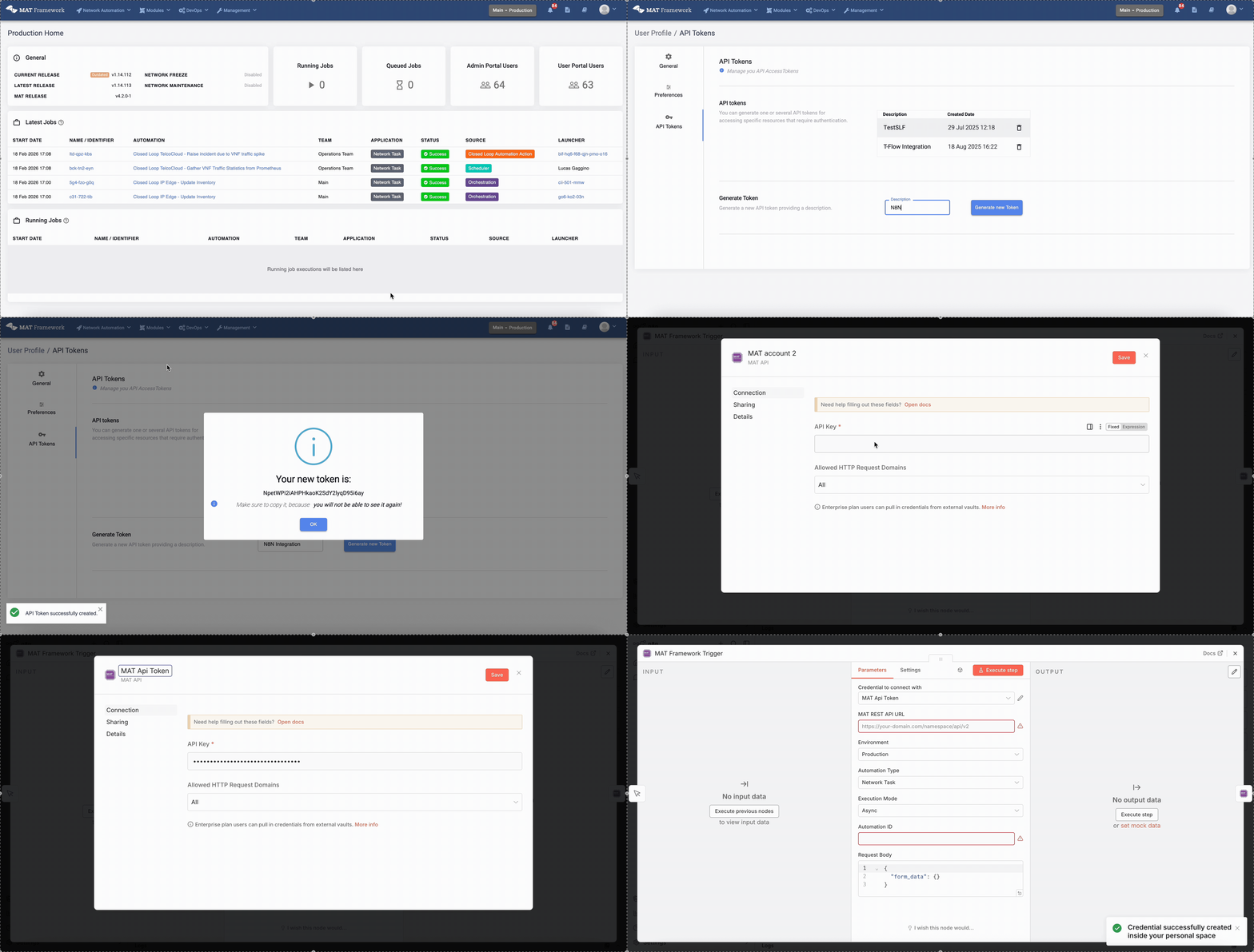
Step 1 – Generate the API Token in MAT
To create an API Token:
- Log in to MAT Framework.
- Click on your user profile.
- Go to the API Tokens section.
- Generate a new token with your desired administrative name.
- Copy the generated token immediately.
Important: The token will not be visible again after this step. Make sure you copy and store it securely.
Step 2 – Configure the Credential in n8n
- In n8n, double-click the MAT Framework Trigger node.
- In the Credential selector, choose Create new credential.
- Paste the API Token generated in MAT into the API Key field.
- In Allowed HTTP Request Domains, leave it as is.
- Optionally, rename the credential by clicking on the name in the modal header and assigning your preferred administrative name.
Important Authentication Requirement
As with execution via MAT REST API, for the token to authenticate correctly and allow automation execution, the token must be configured inside the automation being executed in the target environment. Make sure the token is properly configured within the automation before attempting execution.
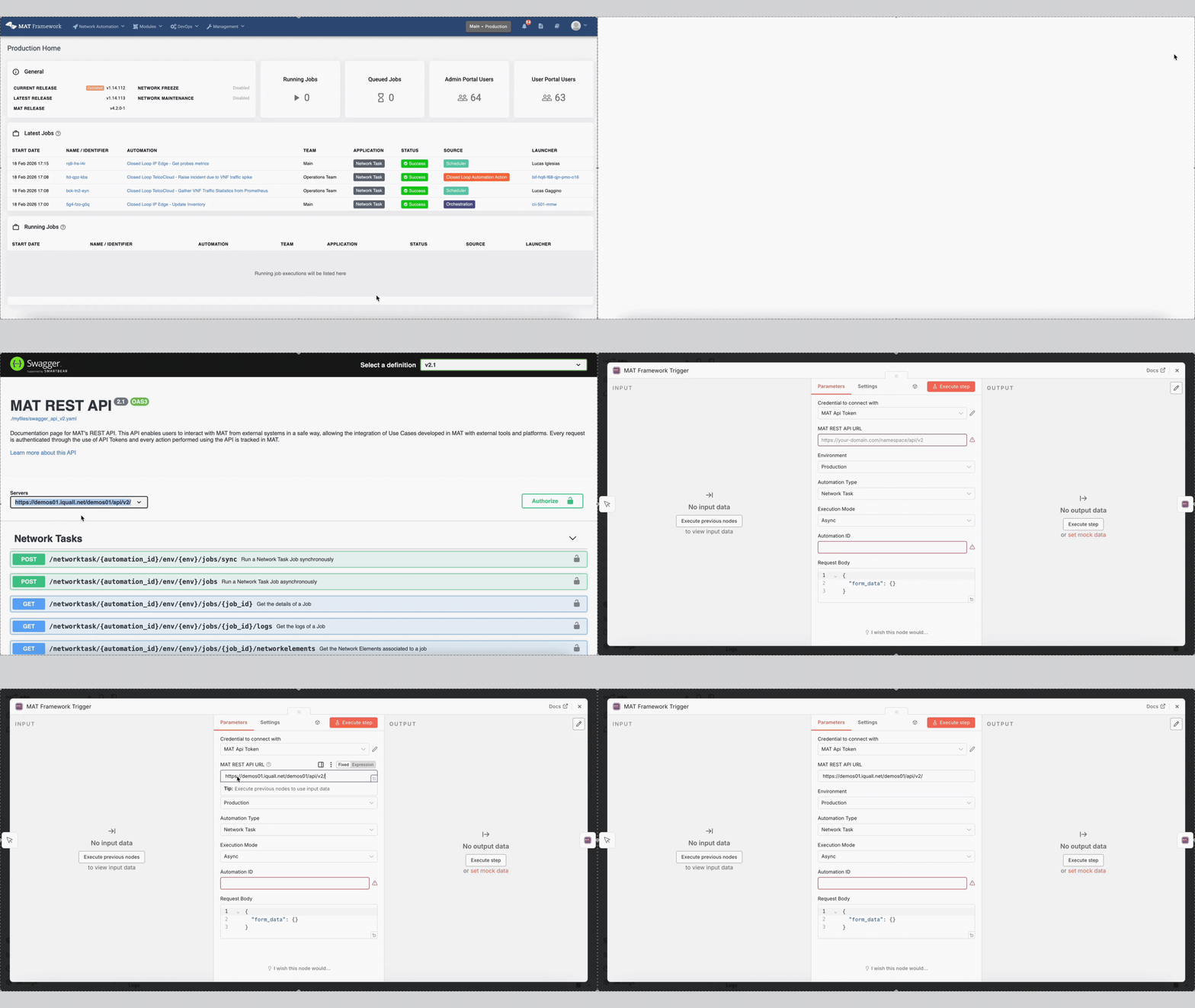
MAT REST API URL
This field corresponds to the MAT tenant URL you want to connect to from n8n. To obtain it:
- In MAT Framework, click your user profile.
- Go to REST API.
- Inside the REST API portal, locate the Servers section.
- Copy the domain listed there.
- Paste it into the MAT REST API URL field in the n8n node.
Environment
Select the MAT environment where the automation will be executed. MAT Framework provides three isolated environments:
- Sandbox
- Pre-Production
- Production
If you are testing, we recommend selecting Sandbox.Note that if you choose Sandbox, the environment where the automation runs depends on which sandbox your MAT user is currently assigned to.
Also remember: the token must be configured in the automation within the specific environment where it will be executed.
Automation Type
Select the type of automation you want to execute:
- Network Task
- Network Workflow
- Orchestration Workflow
Execution Mode
The Execution Mode applies when the selected Automation Type is Network Task.
Network Tasks can run:
- Synchronously: the execution request waits until completion before returning a response.
- Asynchronously: the execution request immediately returns a Job ID.
In the case of Network Workflows and Orchestration Workflows, they always run asynchronously.
Automation ID
You must provide the Automation ID of the automation to execute. To obtain it navigate to the automation in MAT Framework and copy its ID from the Dashboard.
Request Body
In this field, provide the input parameters required by the automation in JSON format (if applicable).
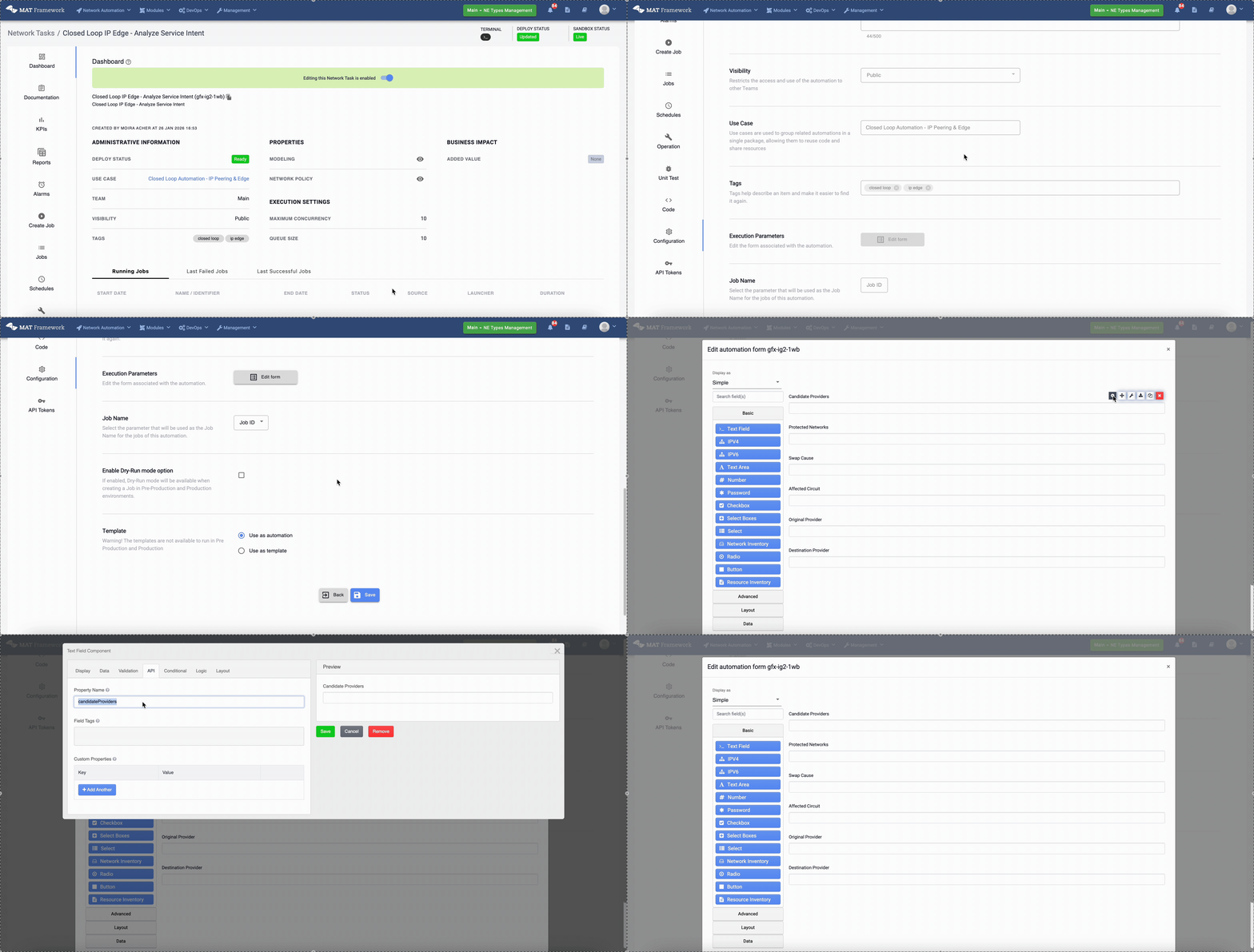
For Network Task, Network Workflow, or Orchestration Workflow, you must follow the correct structure including form_data. Parameter names must match those defined in the automation’s launch form. To find them:
- Go to the automation in the Sandbox environment.
- Open the automation configuration.
- Select Edit Form.
- Hover over the desired form field and click the gear icon.
- In the API section, locate the property name.
- Use that property name in the JSON request body.
Once these fields are completed, your MAT automation trigger is fully configured and ready to use.
Expected Outputs
The output depends on the automation type and execution mode.
- Asynchronous Execution
For Network Tasks, Network Workflows and Orchestration Workflows executed asynchronously the expected output is the Job ID
- Synchronous Execution – Network Task
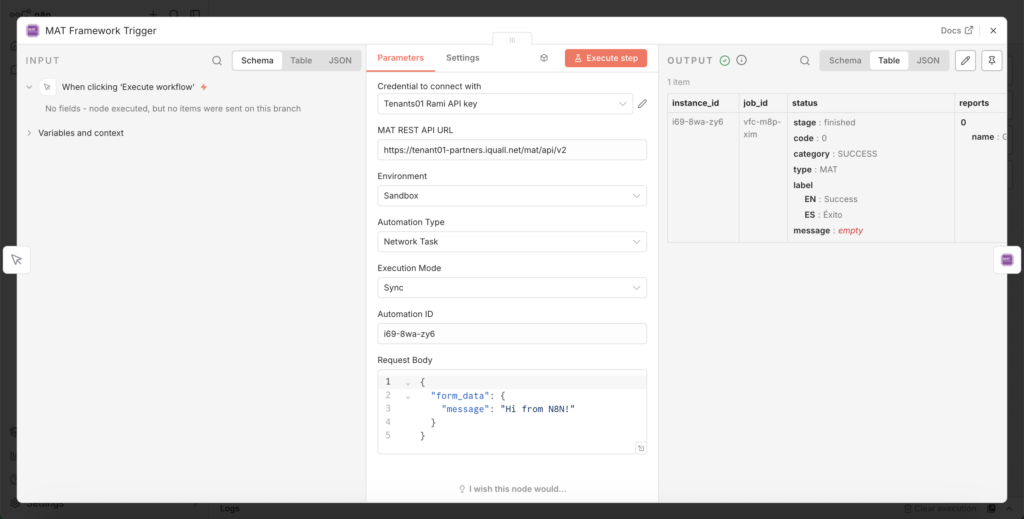
The expected output includes the Job ID, Status = Finished and final state category corresponding to the job
Example:
MAT Framework Read
The MAT Framework Read node is used to get all the execution details of an automation triggered in your MAT instance. To configure it, the following parameters are required:
Credential
The credential used to connect to MAT is generated from an API Key.
Step 1 – Generate the API Token in MAT
To create an API Token:
- Log in to MAT Framework.
- Click on your user profile.
- Go to the API Tokens section.
- Generate a new token with your desired administrative name.
- Copy the generated token immediately.
Important: The token will not be visible again after this step. Make sure you copy and store it securely.
Step 2 – Configure the Credential in n8n
- In n8n, double-click the MAT Framework Read node.
- In the Credential selector, choose Create new credential.
- Paste the API Token generated in MAT into the API Key field.
- In Allowed HTTP Request Domains, leave it as is.
- Optionally, rename the credential by clicking on the name in the modal header and assigning your preferred administrative name.
Important Authentication Requirement
As with execution via MAT REST API, for the token to authenticate correctly and allow automation execution, the token must be configured inside the automation being executed in the target environment. Make sure the token is properly configured within the automation before attempting execution.
MAT REST API URL
This field corresponds to the MAT tenant URL you want to connect to from n8n. To obtain it:
- In MAT Framework, click your user profile.
- Go to REST API.
- Inside the REST API portal, locate the Servers section.
- Copy the domain listed there.
- Paste it into the MAT REST API URL field in the n8n node.
Environment
Select the MAT environment where the automation was executed to get the Job details. MAT Framework provides three isolated environments:
- Sandbox
- Pre-Production
- Production
If you are testing, we recommend selecting Sandbox. Note that if you choose Sandbox, the environment where the automation runs depends on which sandbox your MAT user is currently assigned to.
Also remember: the token must be configured in the automation within the specific environment where it will be executed.
Automation Type
Select the type of automation you want to get the Job details from:
- Network Task
- Network Workflow
- Orchestration Workflow
Operation
Select the information you want to get from the Job details:
- Get Job Information: obtain general information about the automation’s execution. It includes the Job progress, status, source and launcher information, result and report names.
- View Job Logs: Get the last 1000 logs of a Job of the specified automation in the selected environment.
- Get Network Elements: Get the last 300 Network Elements associated to a Job.
- Get Job Result: Get the result generated by the Job.
- Get Job Report: Get a report generated by the Job, specifying the report name.
- Download Report File: Get the contents of a file included in a Job report, specifying the report and file name.
- Get Alarms: Get the open alarms on which the specified automation is set as target in the selected environment.
Automation and Job ID
For all operations, you must specify the Automation and Job ID.
To obtain the Automation ID navigate to the automation in MAT Framework and copy its ID from the Dashboard.
To obtain the Job ID, navigate to the Job Manager in MAT Framework and copy the ID of the job from the first column of the table.